Info
Understand that there is no standard for how skins should be package when they are not distributed on Thunderstore.
There is now the.skinspkgformat, for details on installation for that, read Installing .skinspkg Packages.
Locate your target Skins Folder
Take a look at Paths. Locate and open your Global Skins Folder on your system.
If the folder does not exist yet, it is likely you haven’t launched GTFO with Skins installed.
On Windows, this can also usually be opened by clicking Win + R, inputting the following, and pressing Enter.
"%APPDATA%\io.takina.gtfo.Skins\skins\"
Locate the Skin Groups inside the distributed skin pack
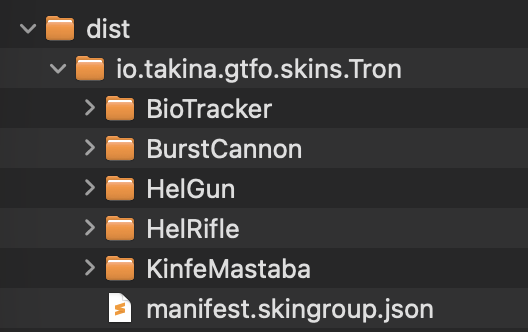
Depending on how the author packaged the skin pack, the Skin Group(s) might not be located at the root of the package. Browse through the package briefly to locate all folders that directly contain a manifest.skingroup.json file.
As an example, in the folder structure shown in the following screenshot, the dist folder is NOT a Skin Group, while io.takina.gtfo.skins.Tron folder IS a valid Skin Group since it directly contains a manifest.skingroup.json file.
Copy all Skin Groups (folders) to the Global Skins Folder
Now that you have located all the Skin Groups and your Global Skins Folder. Copy or move the Skin Group folders themselves directly into the Global Skins Folder.
Installed
The skins should now be successfully installed. Either reload skins for your current session or restart your game to use them.