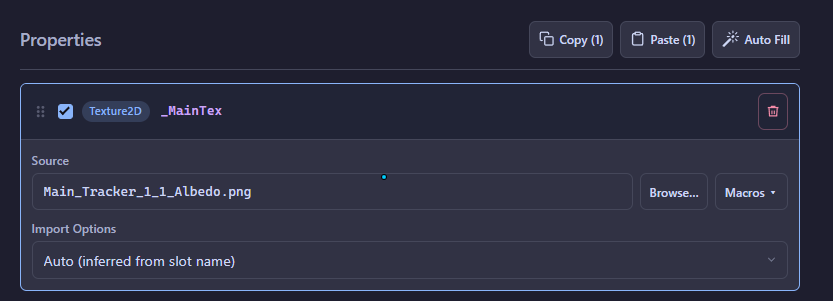
Texture Auto Fill
The Auto Fill feature tries to fill in texture files references (i.e. images) in the current folder for you.
There are two requirements for an image to be matched into a texture slot:
- The image file name must include the material name somewhere (case insensitive).
- The image file name must contain one of the keywords defined for that slot.
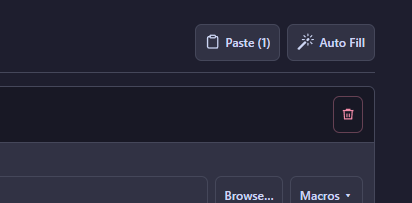
Auto Fill button located at the top right
of the Properties section
If you have some exporting pipeline or naming conventions set up for different textures, there should be common keywords you can extrapolate for different texture slots.
To modify keywords, head to settings and adjust them under the “Auto-Fill Keywords” section.
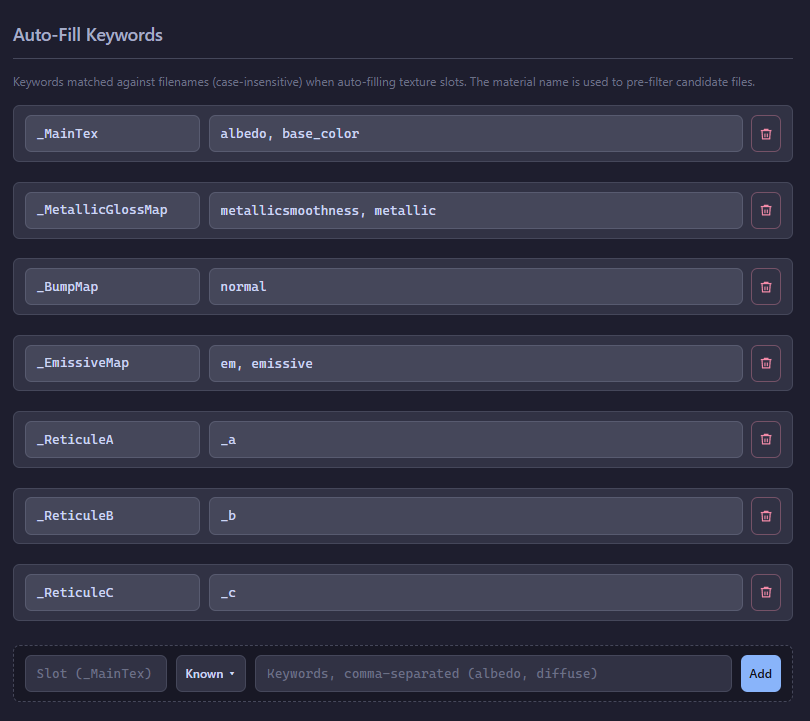
My keywords for matching textures
Copy / Paste Material Properties
After selecting any number of properties you can use the button or Ctrl + C to copy them to the clipboard. Then use the or Ctrl + V to paste them into another Material Target.